Assets
The Assets area is your inventory of everything worth protecting: applications, services, systems, data sets, devices, and more.
The Assets area is your inventory of everything worth protecting: applications, services, systems, data sets, devices, and more. Each asset records its type, criticality, owner, and a few classification flags (such as whether it holds personal data or is exposed to the internet), and can be linked to related records like risks, controls, and suppliers.
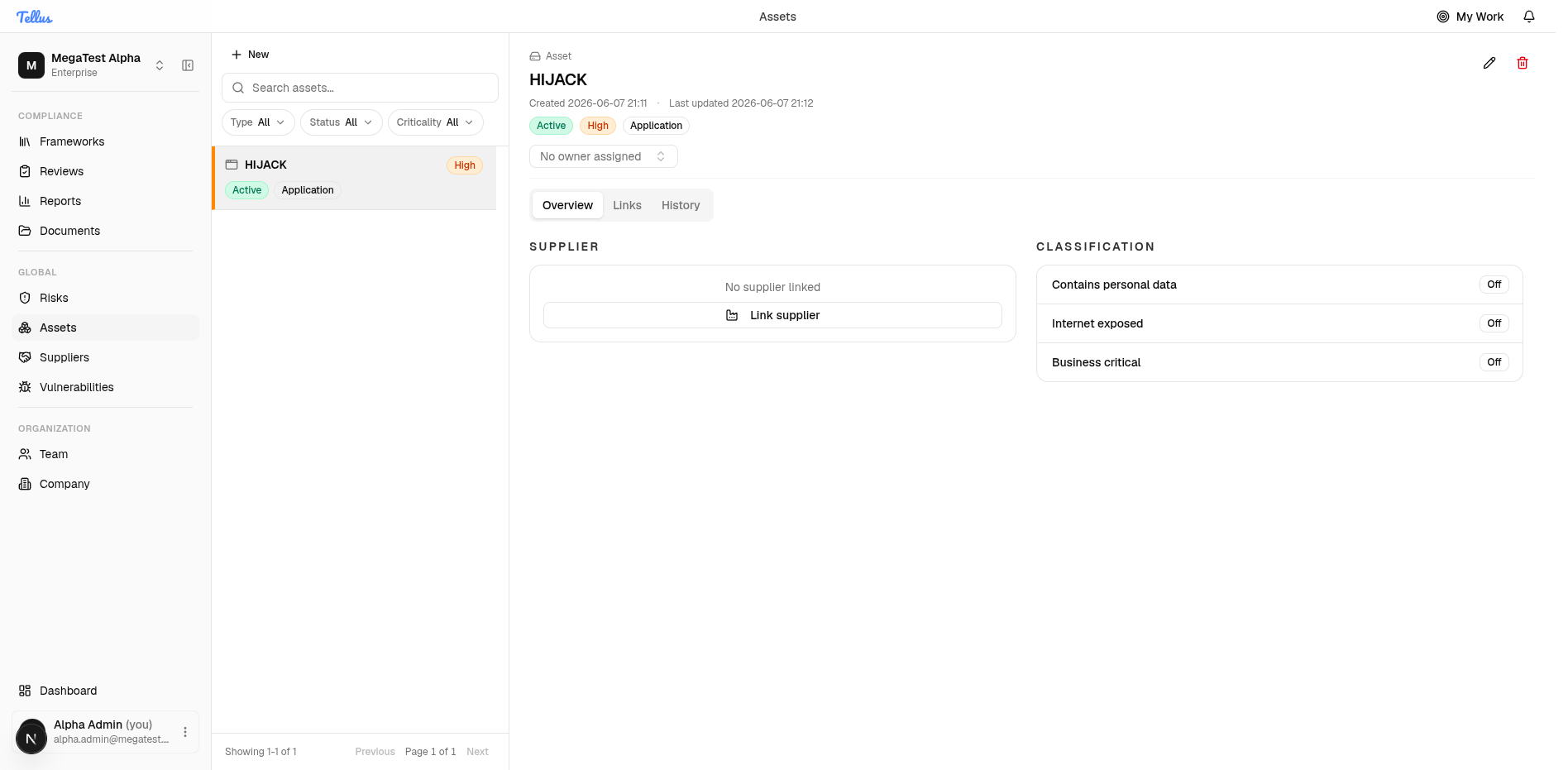
Tellus uses a side-by-side layout: the register list sits on the left, and the details for whichever asset you select open on the right.
Open the asset register
- In the left sidebar, under the Global group, click Assets.
- The register opens with the list of your assets on the left. Each row shows the asset name along with its criticality, status, and type.
- Use the search box to find an asset by name, or use the Type, Status, and Criticality dropdowns to narrow the list.
- Click any asset in the list to view its details on the right.
The first asset in the list is selected automatically, so you'll see its details appear straight away. A footer at the bottom (for example, "Showing 1-1 of 1") shows how many assets are in view, with pagination when there are more.
Review an asset's overview
- Click an asset in the list to open it.
- The header shows the asset name, when it was created and last updated, and status chips (such as Active, High, Application).
- On the Overview tab, use the Owner dropdown to assign who is responsible for the asset.
- Use the Link supplier button in the Supplier section to associate a vendor.
- Check the Classification section to see three flags at a glance: Contains personal data, Internet exposed, and Business critical. Each is shown as On or Off.
- Use the pencil (Edit) icon button in the header to change details, or the trash (Delete) icon button to remove the asset. Switch tabs to view Links and History.
Tip: The classification flags are a quick way to spot your most sensitive assets, those holding personal data, facing the internet, or marked business critical, without opening every record.

See and add linked records
- Open the Links tab on an asset.
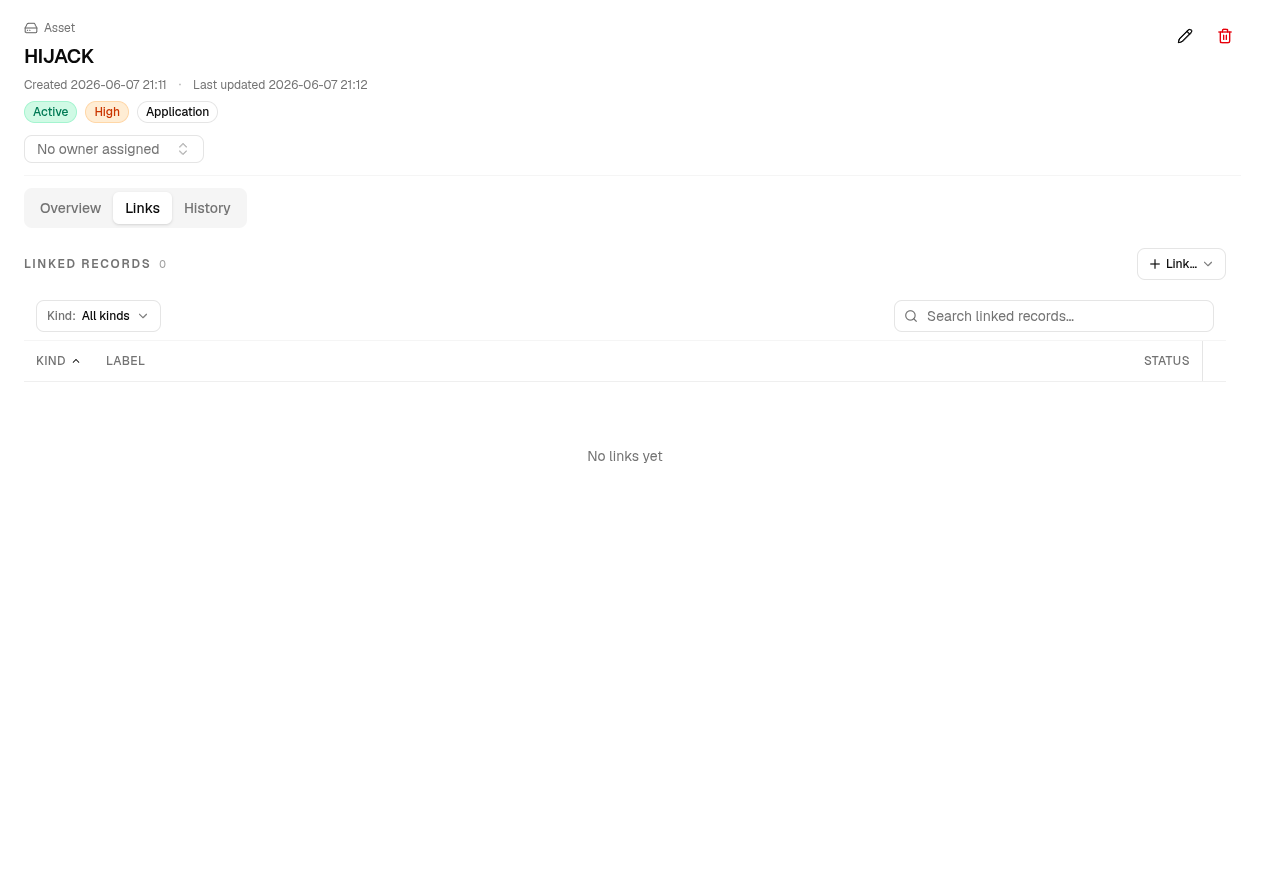
- The "Linked records" heading shows a count of everything currently connected, such as risks, controls, or documents. (Suppliers are linked separately, from the Supplier section on the Overview tab.)
- Click the Link… button and choose what to connect — Risks, Controls, or Documents.
- Once links exist, use the Kind filter or the search box to find a specific one. The table lists each link by Kind, Label, and Status.
When an asset has no links yet, you'll see a "No links yet" message in place of the table.
Create a new asset
- Click the New button at the top of the register.
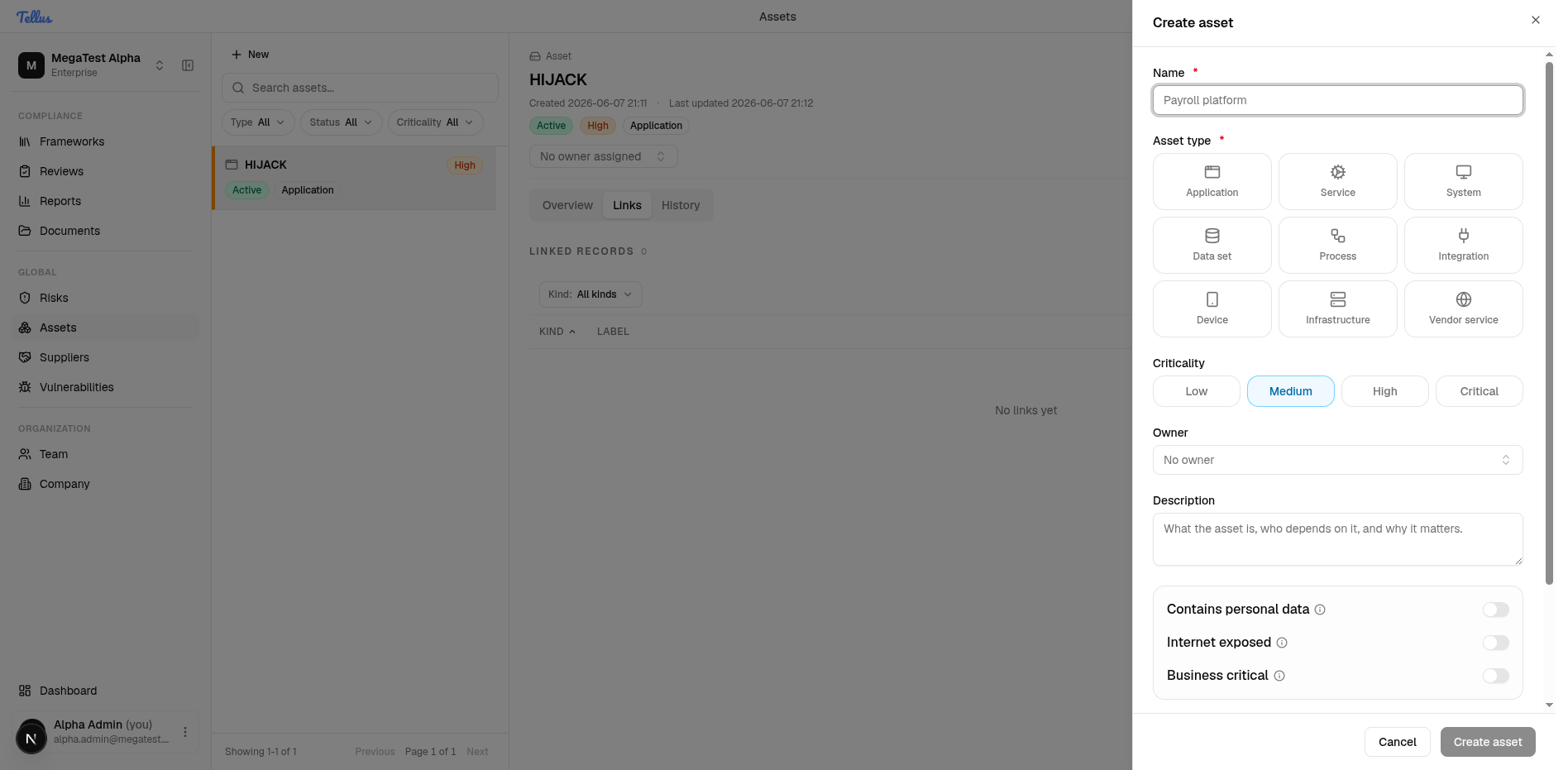
- In the Create asset dialog, type a Name (required).
- Choose an Asset type (required). Options include Application, Service, System, Data set, Process, Integration, Device, Infrastructure, and Vendor service.
- Optionally set the Criticality (Low, Medium, High, or Critical).
- Optionally assign an Owner and add a Description.
- Flip any of the classification toggles that apply: Contains personal data, Internet exposed, Business critical.
- Optionally add an External reference (such as a CMDB ID) and link a Supplier.
- When the required fields are complete, click Create asset to add it. Click Cancel to close without saving.
Tip: The Create asset button stays disabled until you've filled in the required Name and Asset type, so if it looks greyed out, check those two fields first.