Reports
The Reports area lets you turn your compliance work into polished, shareable documents.
The Reports area lets you turn your compliance work into polished, shareable documents. From here you can generate a report for a specific framework or a company-wide overview, choose a template and language, then browse, preview, and download finished reports.
Each report captures your controls and their status, assessment results and scores, and supporting evidence at the moment it was created. It's the place to go when you need something to hand to an auditor, leadership, or a regulator.
Open the Reports list
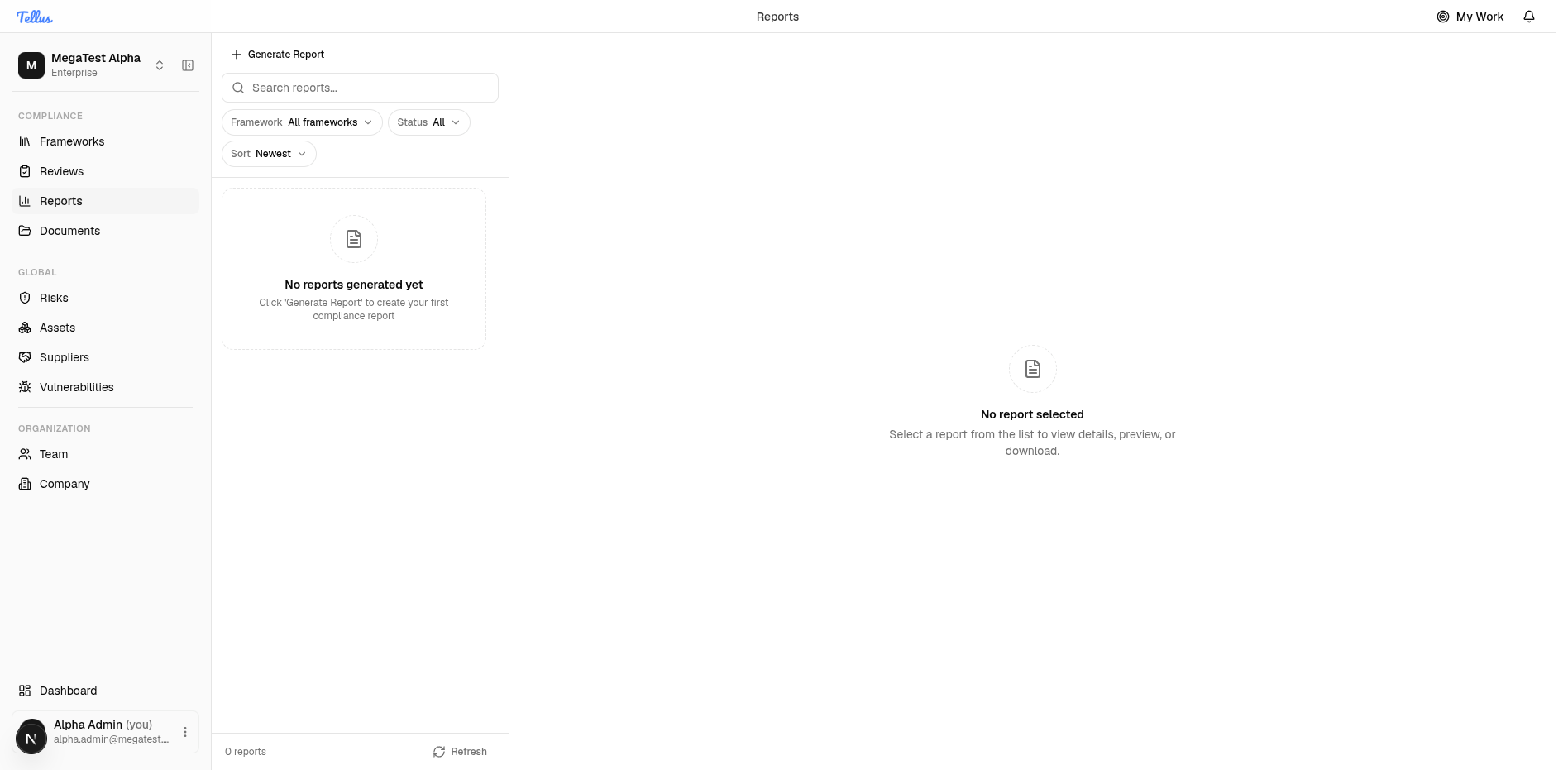
- In the left sidebar, under Compliance, click Reports.
- The Reports page opens in a two-pane layout. On the left is a toolbar with a Generate Report button, a search box, and filters for Framework, Status, and Sort (Newest), followed by the report list.
- If your company has not created any reports yet, the list is empty and shows No reports generated yet with a hint to click Generate Report. The right pane shows No report selected until you pick one.
Tip: Once you have a longer list, use the search box and the Framework, Status, and Sort filters to narrow it down quickly.
Open the Generate Report dialog
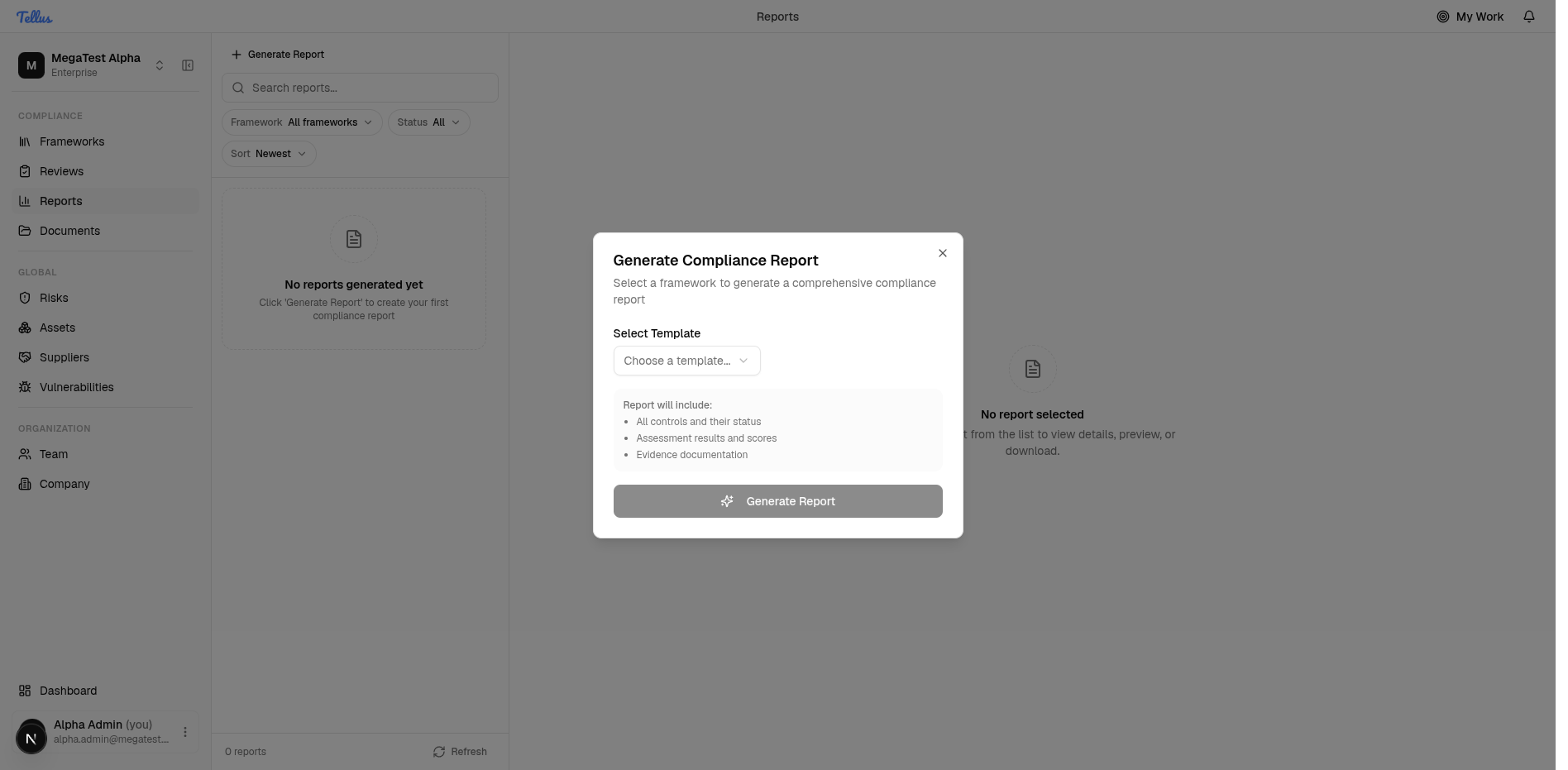
- Click the Generate Report button at the top of the report list.
- The Generate Compliance Report dialog opens. It explains that you select a framework to generate a comprehensive report, offers a Select Template dropdown, and lists what the report will include: all controls and their status, assessment results and scores, and evidence documentation.
- Read the Report will include list so you know what the document will contain, then move on to choosing a template.
Tip: The Generate Report button inside the dialog stays disabled until you make your selections, so don't worry if it looks greyed out at first.
Choose a report template
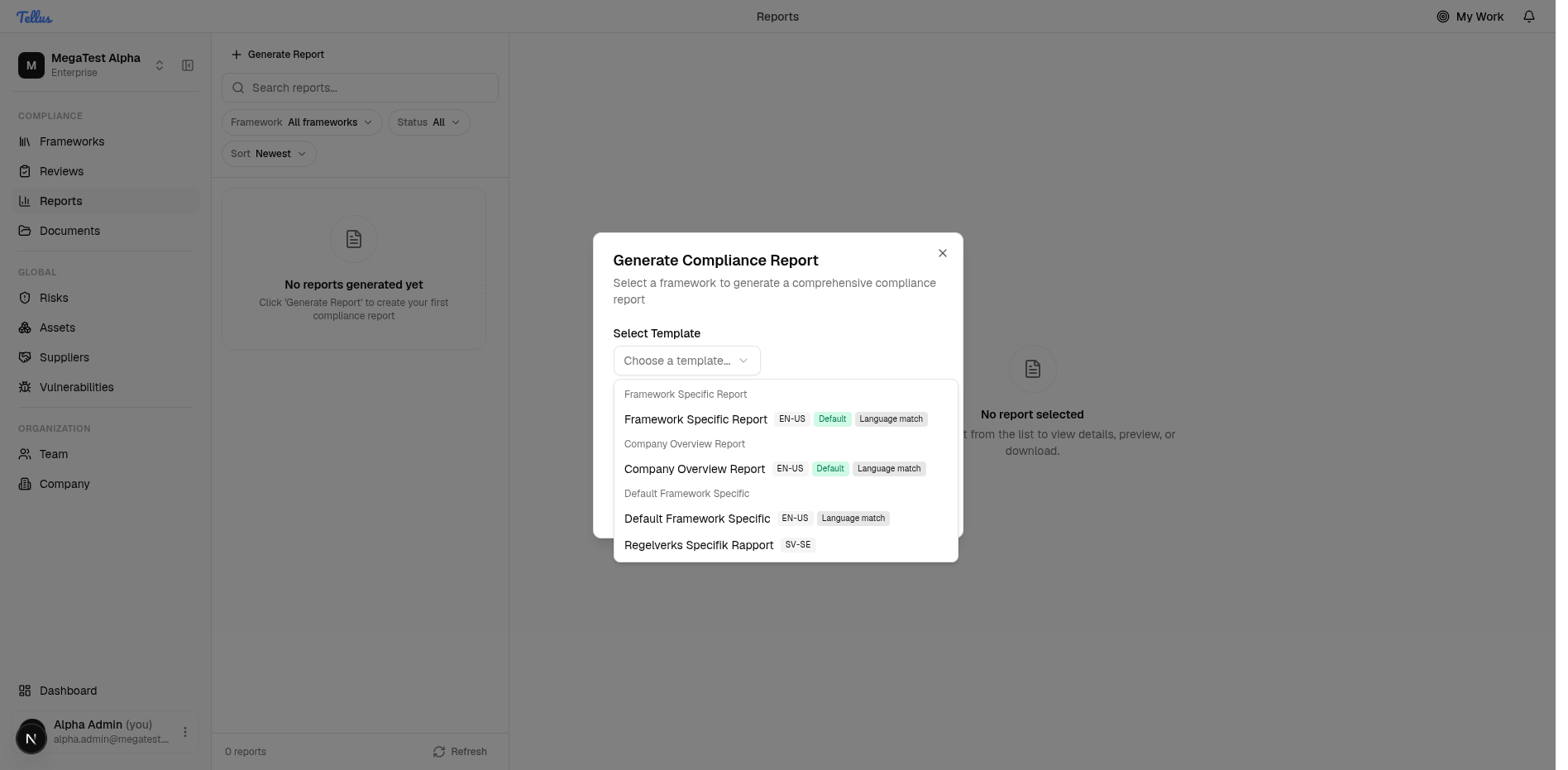
- Click the Select Template dropdown.
- The available templates appear, grouped by type, such as Framework Specific Report and Company Overview Report, plus default and localized variants (for example an English en-US default and a Swedish sv-SE version). Each option shows its language and whether it is the default.
- Pick the template that fits your goal:
- Choose a framework-specific template to report on one framework.
- Choose a company overview template for a broader summary.
- If more than one language variant is offered, pick the language you need.
Pick the framework to report on
- If you chose a framework-specific template, a second Select Framework dropdown appears.
- Click it to see the frameworks available to you, such as MegaTest Other Framework and MegaTest Scoped Framework.
- Choose the framework you want to document.
Tip: A company overview template does not ask for a framework, so you won't see this step if you picked that type.
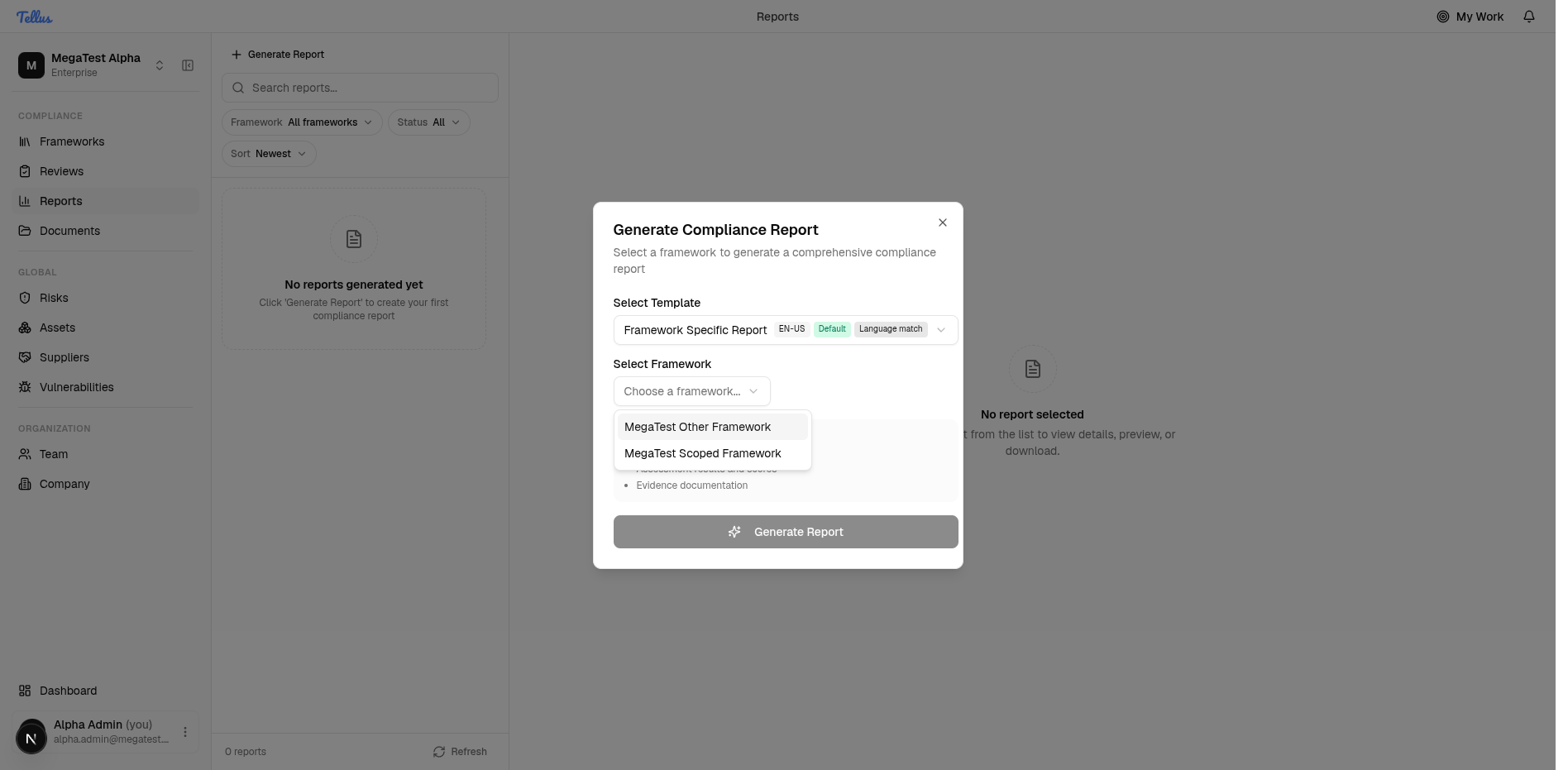
Generate the report
- With both a template and a framework selected, the dialog is fully filled in and the Generate Report button becomes active.
- Double-check your template and framework selections. The Report will include summary stays visible so you can confirm your choices.
- Click Generate Report. The dialog closes and a new report appears at the top of the list.
- If you change your mind, click Close to dismiss the dialog instead.
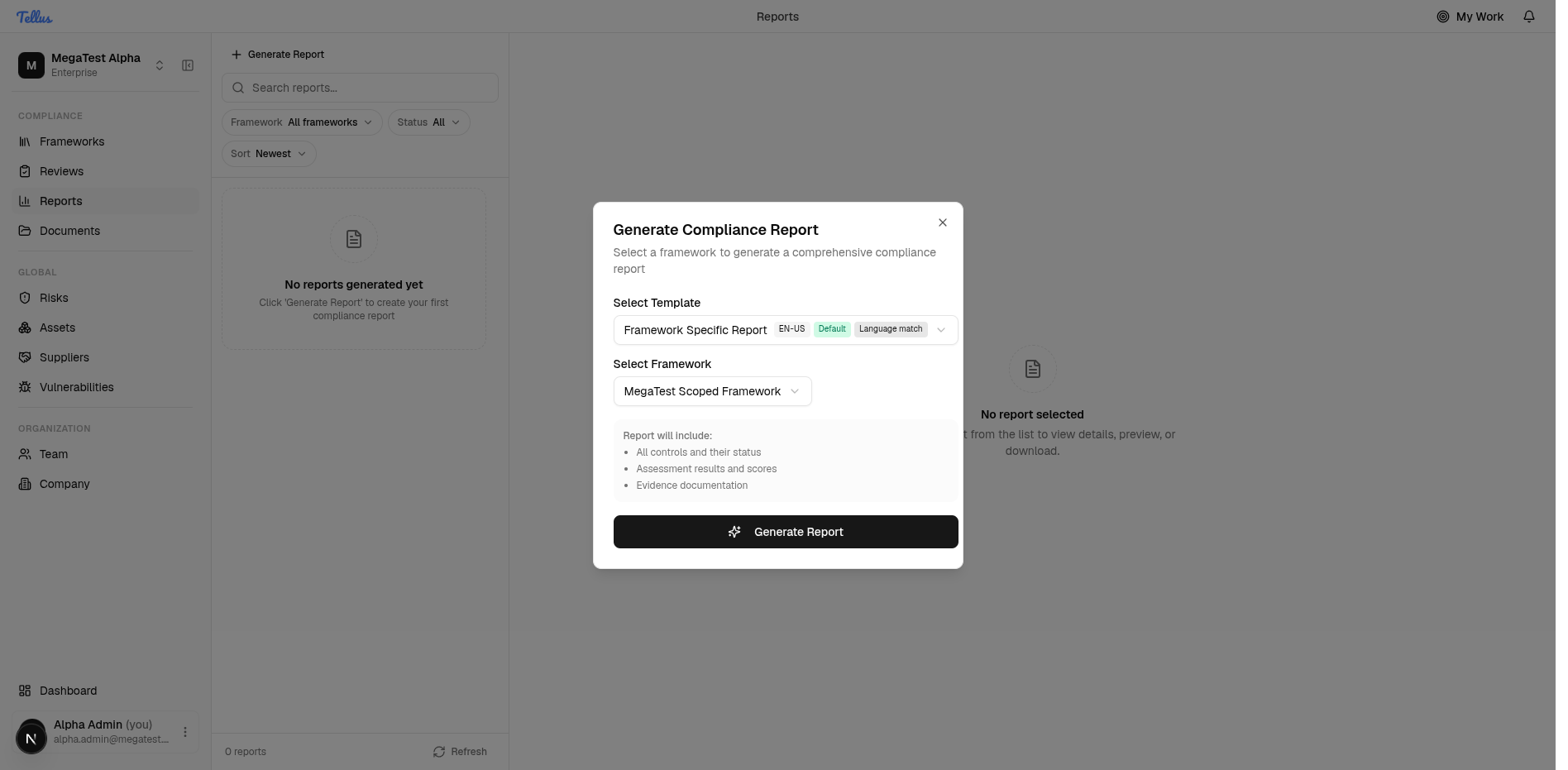
Open and review a report
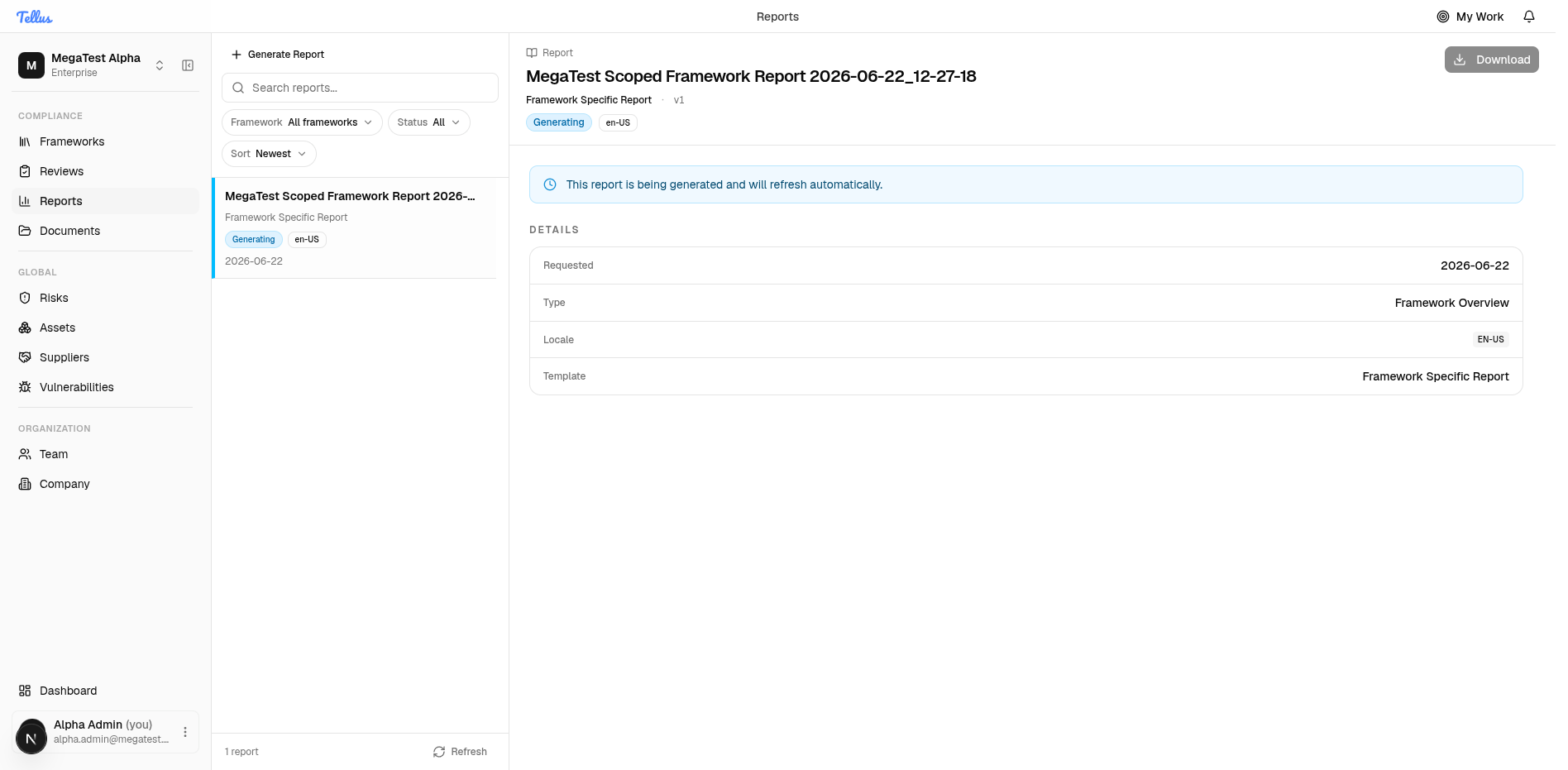
- Click any report in the list to open its detail view in the right pane.
- The header shows the report name, its template, version (v1), language, and a status badge. A Download button sits at the top right.
- Below the header is a status note and a Details section listing the Requested date, Type, Locale, and Template.
- While a report is still being prepared, its status reads Generating and the Download button is disabled. The page refreshes on its own, or you can use the Refresh button.
- When the report is ready, the status changes and the Download button becomes available. Click Download to save the finished document.
Tip: A freshly generated report may stay in the Generating state for a little while as it is built in the background. Leave the detail view open and let it refresh, or come back to it shortly.