Suppliers
The Suppliers area is your third-party vendor register.
The Suppliers area is your third-party vendor register. It's where you keep track of every supplier your organization depends on, along with how critical and how trustworthy each one is.
Each supplier has its own detail panel showing its status, criticality, and owner, plus tabs for reviews, contacts, contracts, linked risks and assets, events, and findings. Instead of a single numeric "trust score," Tellus expresses supplier risk through three things you can read at a glance: the criticality rating, the lifecycle status, and the review and findings activity recorded over time.
You add new suppliers manually using the New button. Reusable review questionnaires are managed separately under Templates.
Open the supplier register
- In the left sidebar, under the Global group, click Suppliers.
- The register opens, showing every supplier in your company in the left-hand list.
- Use the Search box to find a supplier by name, or narrow the list with the Status and Criticality filter buttons.
- Click any supplier in the list to view its full details in the panel on the right. (The first supplier opens automatically when you arrive.)
The bottom of the list shows how many suppliers you're seeing, for example "Showing 1-1 of 1."
Tip: The page uses a two-panel master-detail layout, so the supplier you select appears in the address bar. That's expected, and it makes it easy to share a direct link to a specific supplier.
Review a supplier's details and risk information
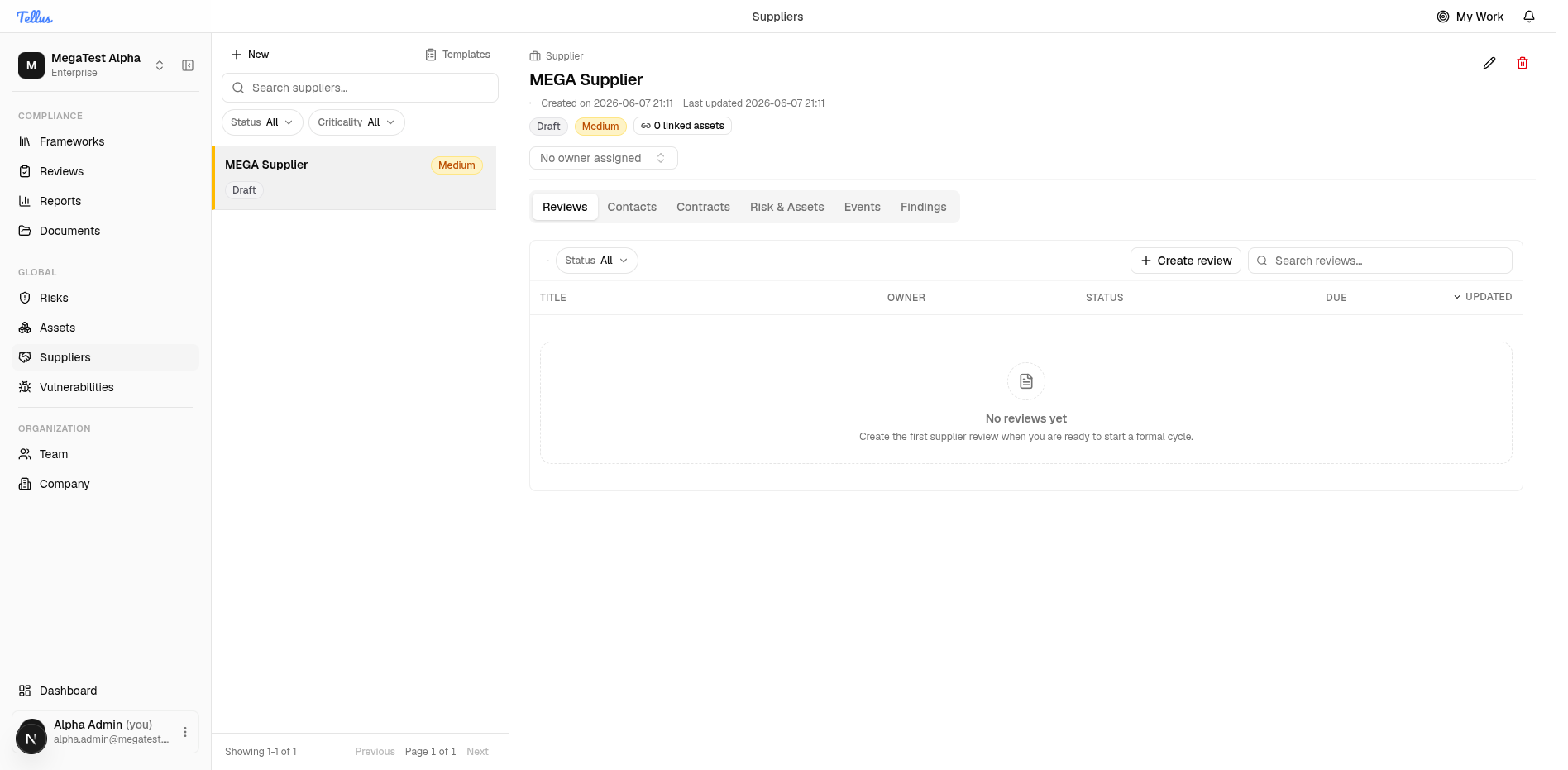
With a supplier selected, the detail panel on the right shows everything you need.
- Read the header to see the supplier at a glance: its name, when it was created and last updated, its status badge (for example, Draft), its criticality badge (for example, Medium), and a count of linked assets.
- Use the Owner dropdown just below the header to assign who is responsible for the supplier.
- Click through the tabs to explore each area:
- Reviews — assessment cycles for the supplier.
- Contacts — the people you deal with at the supplier.
- Contracts — agreement and relationship details.
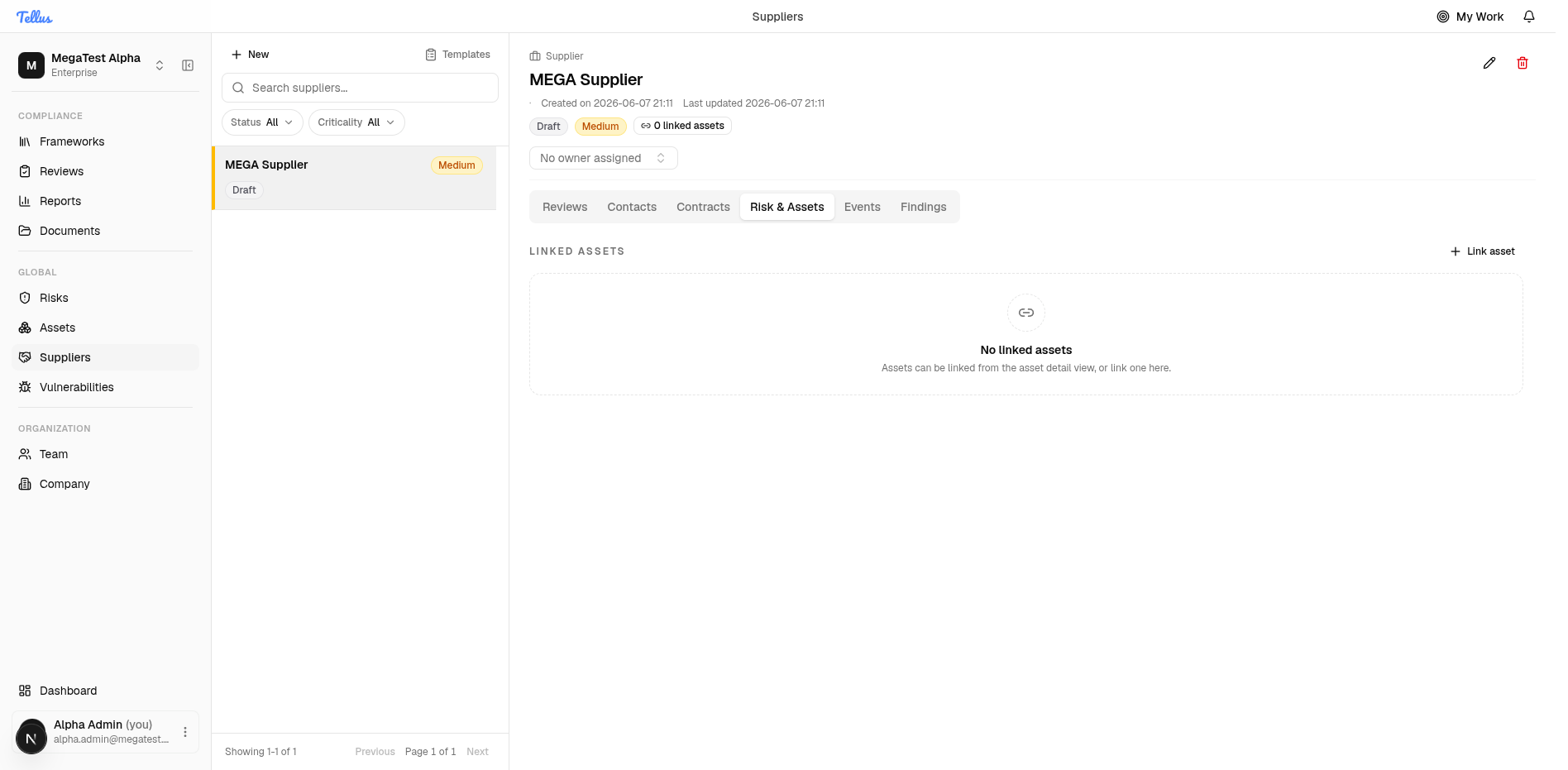
- Risk & Assets — linked assets, with a Link asset button to connect assets.
- Events — the activity timeline.
- Findings — issues raised during reviews.
- Use the Edit button to update the supplier's information, or Archive to retire a supplier you no longer need.
Tip: A brand-new supplier won't have any reviews, findings, or linked assets yet, so those tabs will show empty states. That's normal. They fill in as you add data and run reviews.
There is no separate numeric trust-score widget. To gauge how risky or trusted a supplier is, look at its Criticality rating and Status in the header, the Risk & Assets tab, and the Findings tab together.
Add a new supplier
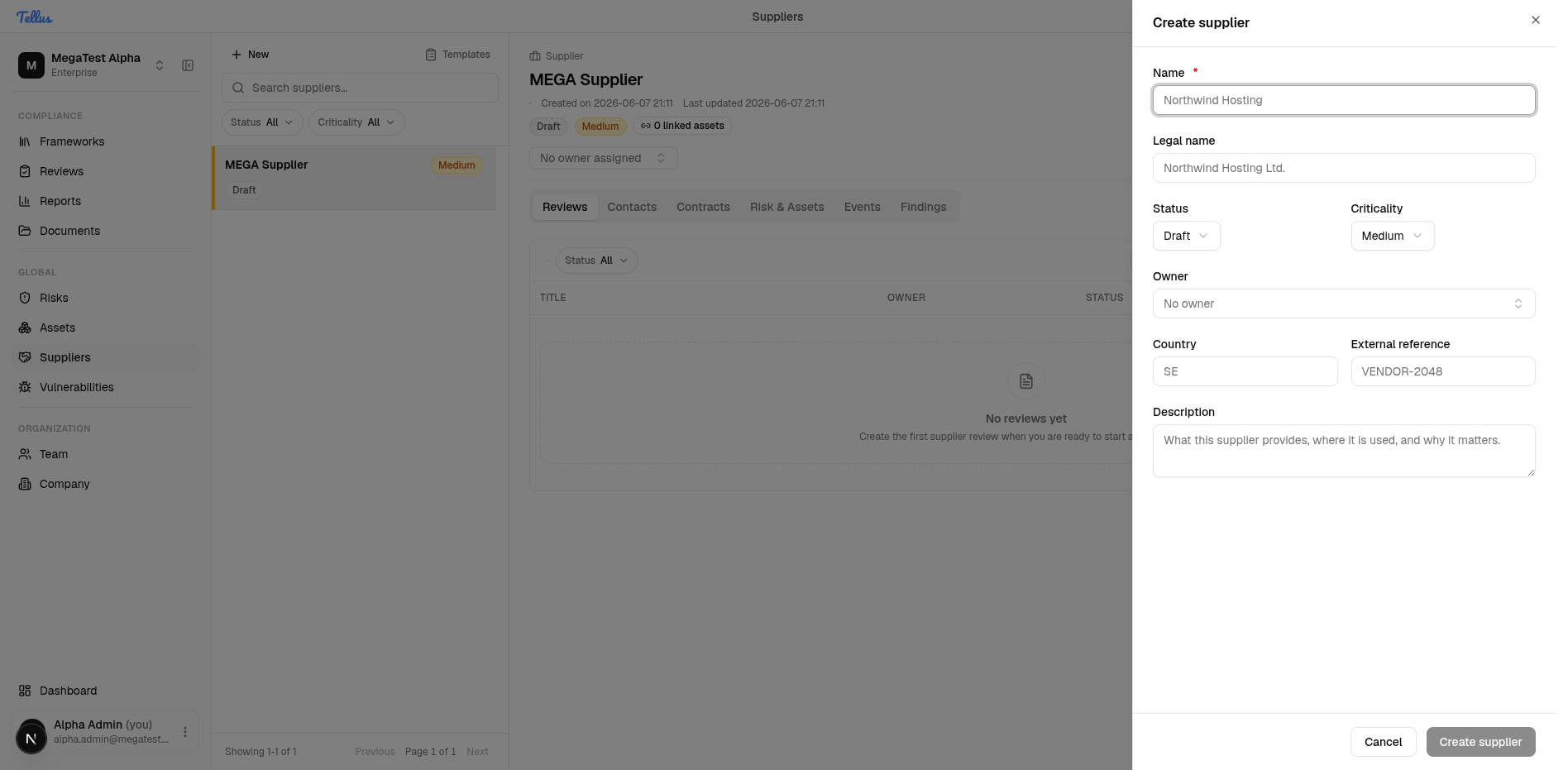
- Click the New button at the top of the supplier list to open the Create supplier dialog.
- Type the supplier's Name. This is the only required field, and the Create supplier button stays disabled until you enter one.
- Optionally fill in the rest:
- Legal name — the supplier's formal registered name.
- Status — defaults to Draft.
- Criticality — defaults to Medium.
- Owner — who is responsible for the supplier.
- Country — where the supplier is based.
- External reference — your own code or ID for the supplier.
- Description — a short note on what they provide and why they matter.
- Click Create supplier to save, or Cancel to discard.
Tip: Click the Templates button next to New to manage reusable questionnaire templates. These are company-owned questionnaires you can reuse across supplier reviews; they are not tied to a single supplier or review.