Documents & Evidence
The Documents area is your company's central library for policies, procedures, and the evidence that proves your controls are working.
The Documents area is your company's central library for policies, procedures, and the evidence that proves your controls are working. Everything you upload lives here, and you can link each file to the controls or assets it supports so it counts as evidence in the right places.
Open the document library
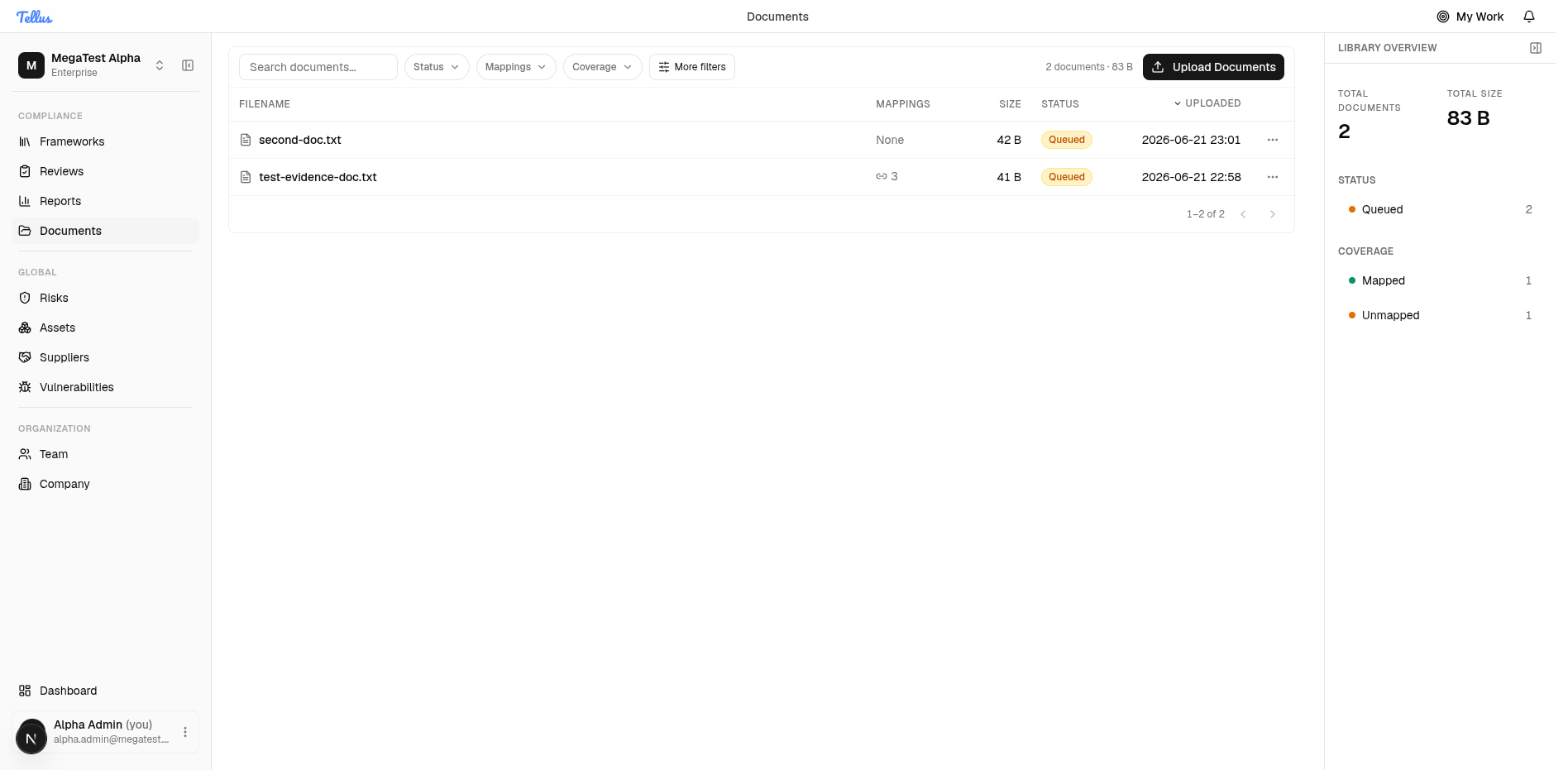
- In the left sidebar, under the Compliance group, click Documents.
- The library opens and lists every document in your company in a table with columns for Filename, Mappings, Size, Status, and Uploaded date.
- Use the search box or the Status, Mappings, and Coverage filters along the top to narrow the list.
- Click any column header to sort the table.
- Check the Library overview panel on the right for an at-a-glance summary: total documents, total size, status counts, and coverage (how many files are mapped versus unmapped).
Tip: The Coverage filter is a quick way to find files that aren't linked to anything yet, so you can map them as evidence.
Add a document
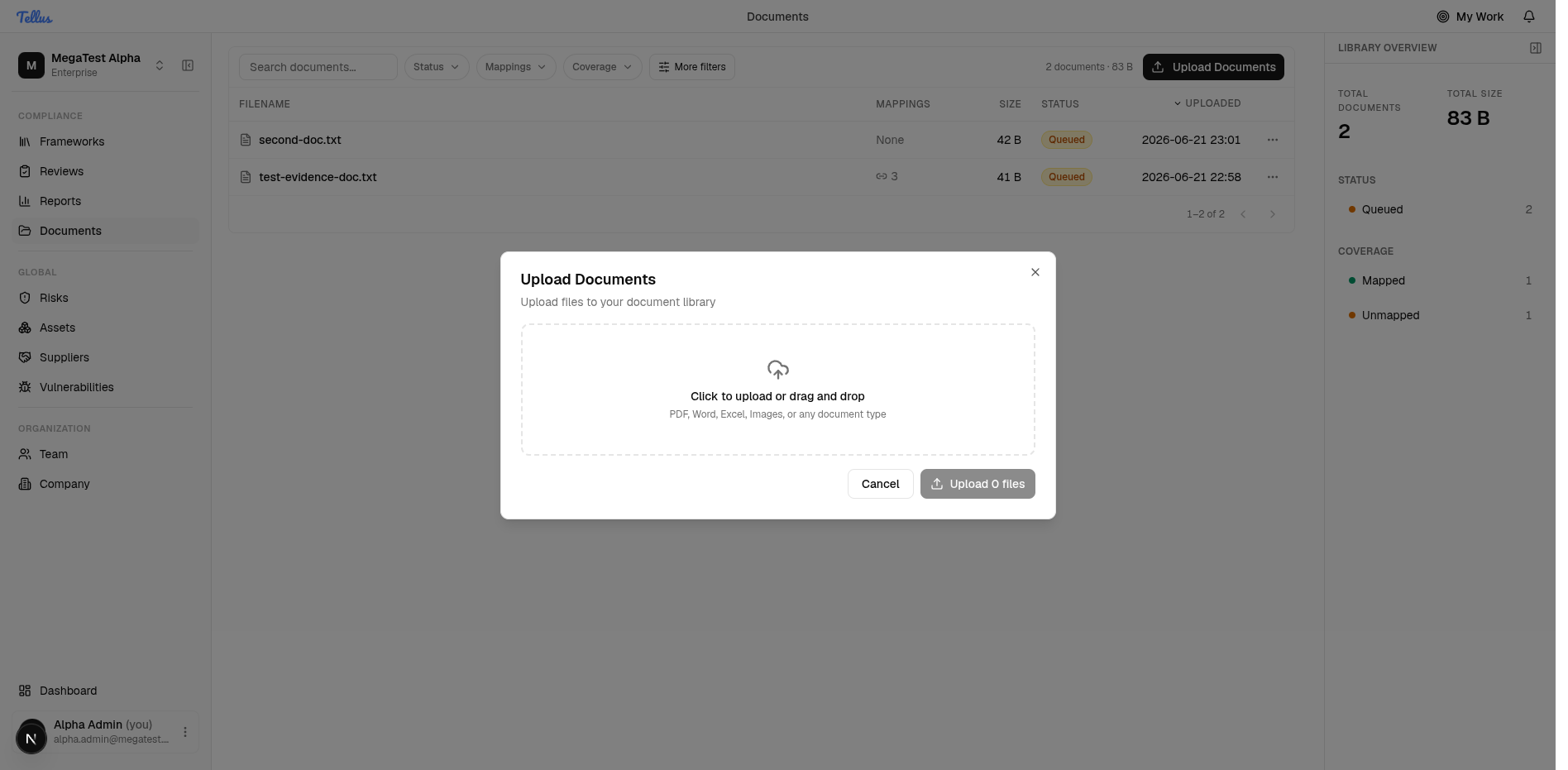
- Click the Upload Documents button at the top right of the library.
- In the dialog, either click the upload area to browse for files on your computer, or drag files directly onto it.
- You can add any document type, including PDF, Word, Excel, and images.
- Once at least one file is selected, the Upload button (labelled "Upload N files", where N is the number of files you've added) activates. Click it to send your files to the library.
- To close the dialog without uploading, click Cancel.
Tip: The Upload button stays disabled and reads "Upload 0 files" until you add a file, so if it looks greyed out, add a file first.
Open a document's details
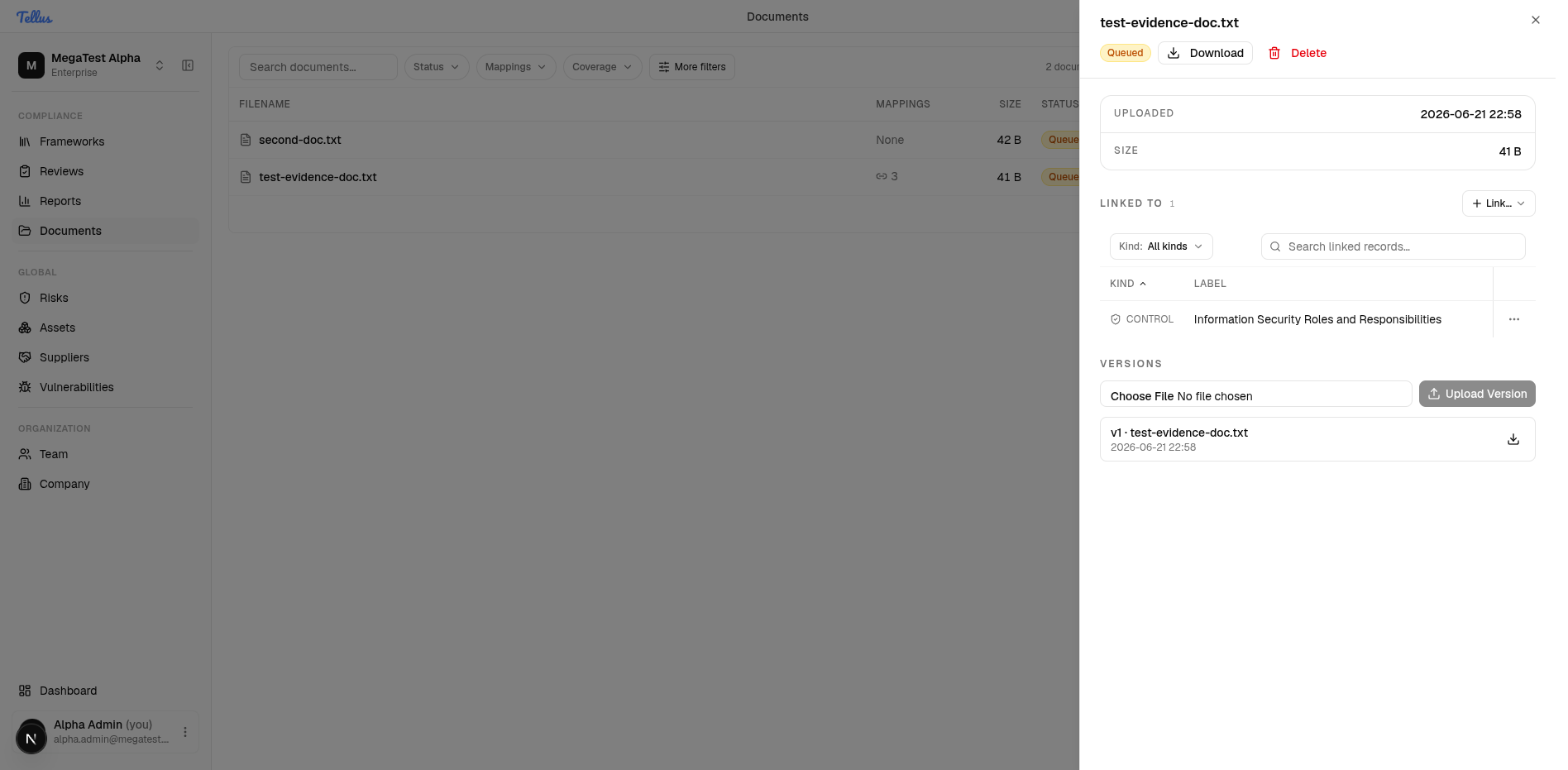
- Click any row in the document table to open its detail dialog.
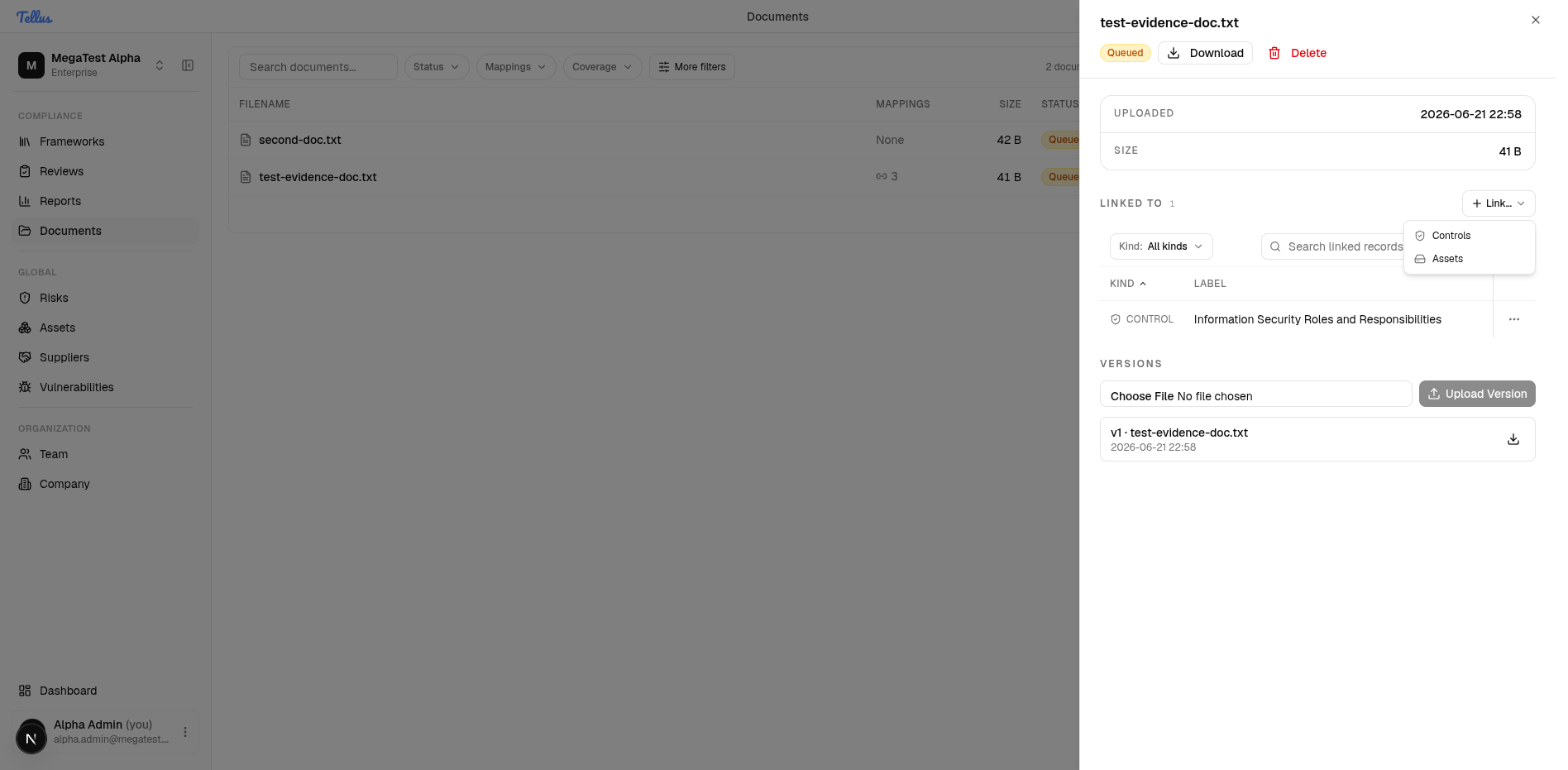
- At the top you'll see the file's status along with Download and Delete buttons.
- The metadata section shows when the file was Uploaded and its Size.
- The Linked to section lists every control or asset this document supports. Each link has an Unlink action if you need to remove it.
- The Versions section lets you upload a newer version while keeping the history, or download an earlier version.
Link a document to controls or assets
- In the document detail panel, find the Linked to section and click the Link… button.
- Choose Controls to attach the document as evidence for a compliance control, or Assets to associate it with an asset.
- After linking, the document's Mappings count updates in the library, and the file appears as evidence on the linked control's page.
- To remove a link, click the Unlink action next to any existing entry.
Tip: Linking documents to controls is the core evidence workflow. A control with linked documents has proof attached that it's being followed.